hand-waveWelcome

Welcome

Welcome to the GitBook starter template! Here you'll get an overview of all the amazing features GitBook offers to help you build beautiful, interactive documentation.

You'll see some of the best parts of GitBook in action — and find help on how you can turn this template into your own.

adding content

Jump right in

Quickstart

Create your first site

Editor basics

Learn the basics of GitBook

globe-pointer

Publish your docs

Share your docs online

GitBook has a powerful block-based editor that allows you to seamlessly create, update, and enhance your content.

Writing content

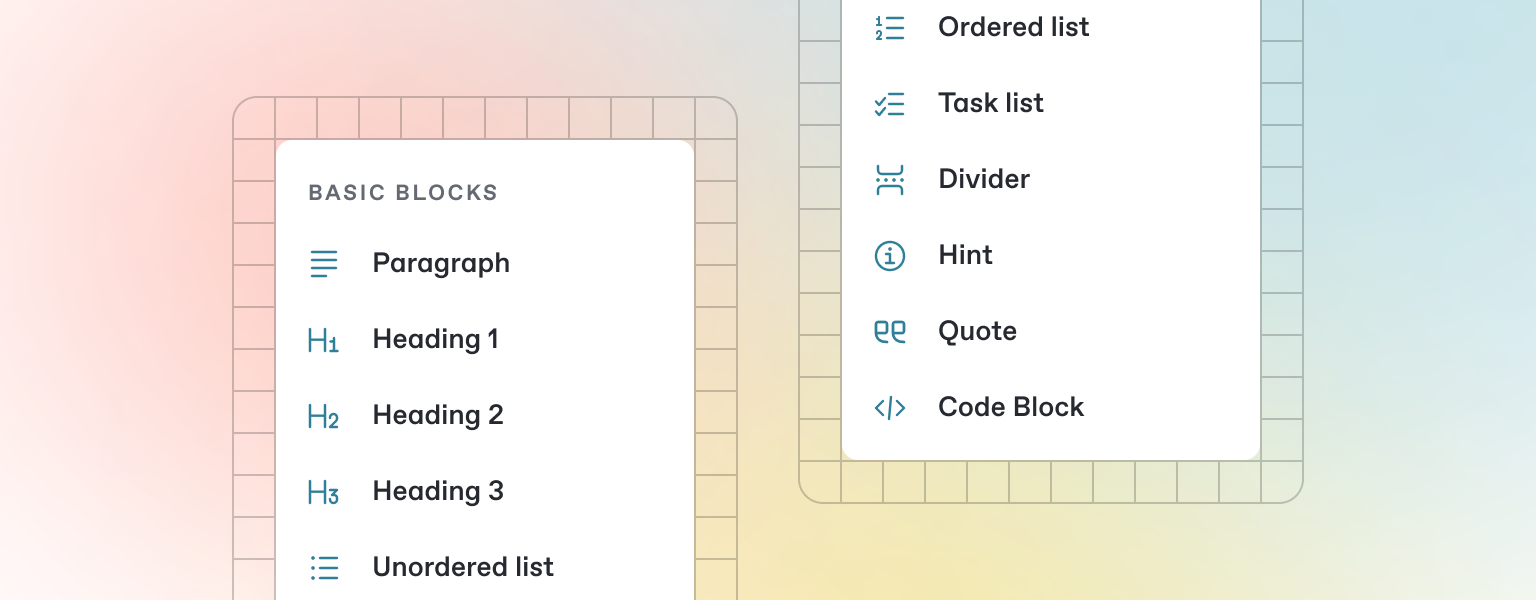
GitBook offers a range of block types for you to add to your content inline — from simple text and tables, to code blocks and more. These elements will make your pages more useful to readers, and offer extra information and context.

Either start typing below, or press / to see a list of the blocks you can insert into your page.

Add a new block

1

Open the insert block menu

Press / on your keyboard to open the insert block menu.

2

Search for the block you need

Try searching for “Stepper”, for exampe, to insert the stepper block.

3

Insert and edit your block

Click or press Enter to insert your block. From here, you’ll be able to edit it as needed.

Markdown

GitBook supports many different types of content, and is backed by Markdown — meaning you can copy and paste any existing Markdown files directly into the editor!

Feel free to test it out and copy the Markdown below by hovering over the code block in the upper right, and pasting into a new line underneath.

circle-info

If you have multiple files, GitBook makes it easy to import full repositories too — allowing you to keep your GitBook content in sync.

Images & media

GitBook allows you to add images and media easily to your docs. Simply drag a file into the editor, or use the file manager in the upper right corner to upload multiple images at once.

Add alt text and captions to your images
circle-info

You can also add images simply by copying and pasting them directly into the editor — and GitBook will automatically add it to your file manager.

Interactive blocks

In addition to the default Markdown you can write, GitBook has a number of out-of-the-box interactive blocks you can use. You can find interactive blocks by pressing / from within the editor.

Tabs

Each tab is like a mini page — it can contain multiple other blocks, of any type. So you can add code blocks, images, integration blocks and more to individual tabs in the same tab block.

Expandable sections

chevron-rightClick me to expandhashtag

Expandable blocks are helpful in condensing what could otherwise be a lengthy paragraph. They are also great in step-by-step guides and FAQs.

Embedded content

circle-info

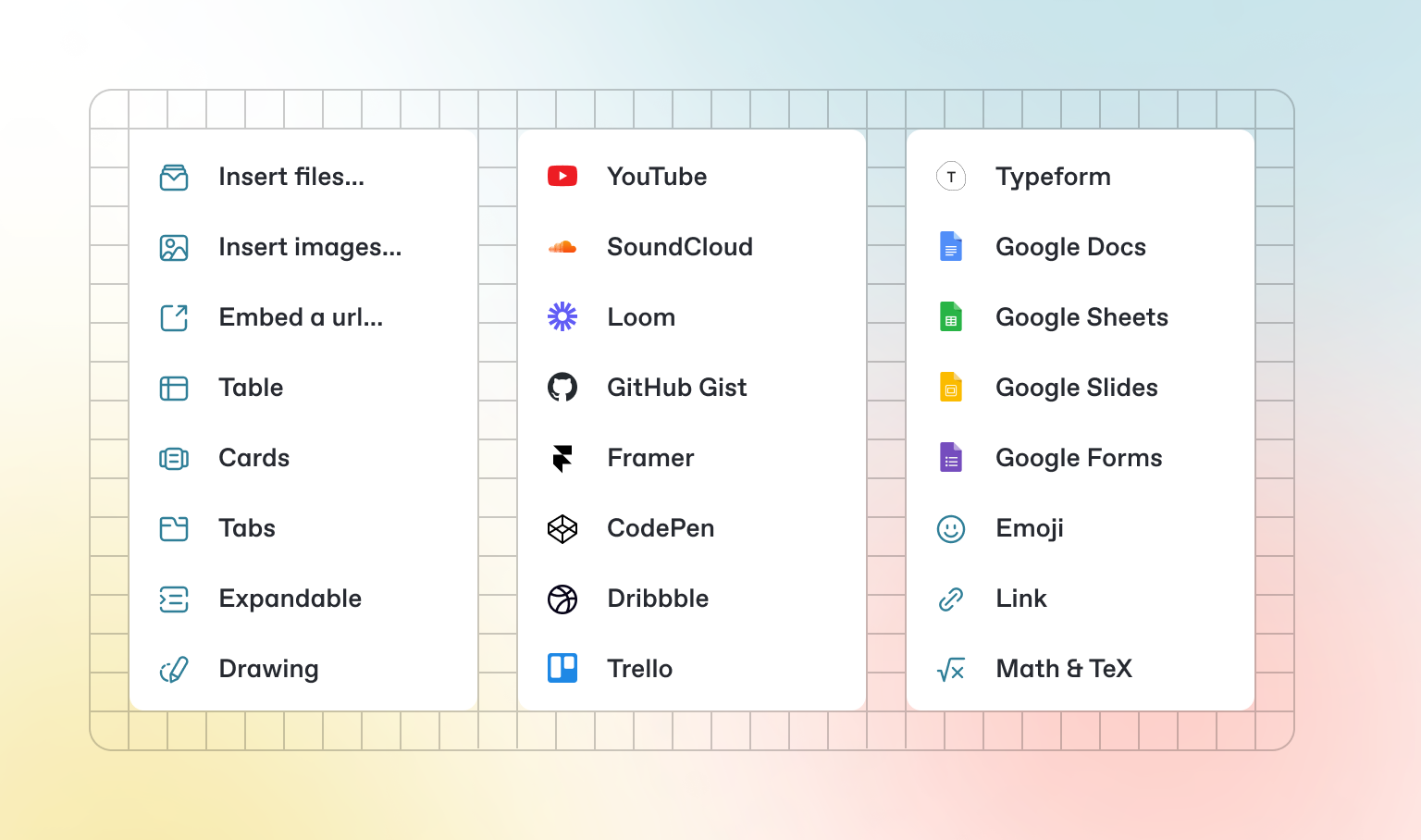
GitBook supports thousands of embedded websites out-of-the-box, simply by pasting their links. Feel free to check out which ones are supported nativelyarrow-up-right.

Integrations

GitBook integrations allow you to connect your GitBook spaces to some of your favorite platforms and services. You can install integrations into your GitBook page from the Integrations menu in the top left.

Types of integrations

Last updated